How to Send Rejection Emails from Google Sheets (Automated Guide)
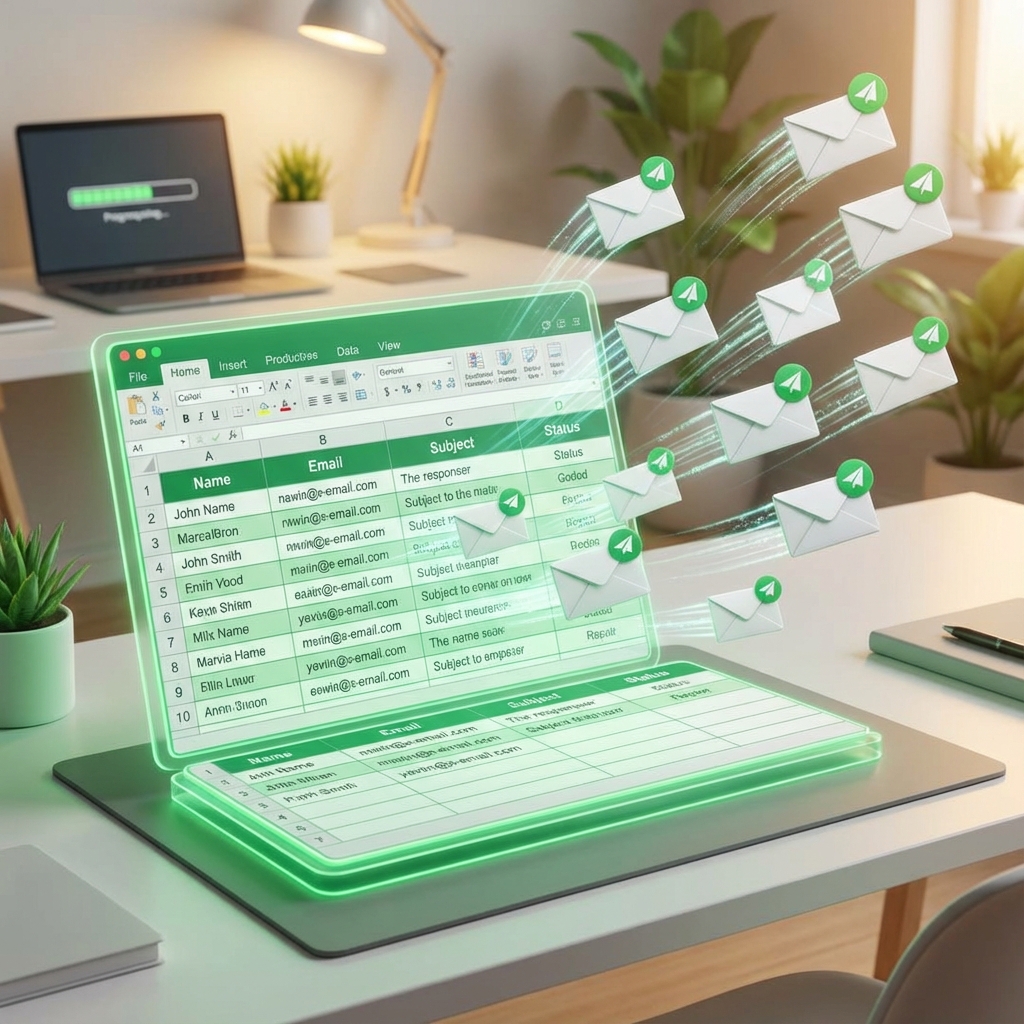
The worst part of hiring isn't reading resumes—it's the ghosting.
You know you should reply to every candidate, even the ones you reject. It protects your employer brand. But hitting "Reply", pasting a template, changing the name, and hitting "Send" 50 times? Nobody has time for that.
So you probably do what everyone else does: nothing.
Method 1: The Google Sheets + Mail Merge Method
If you are using Google Forms to collect applications, your data is already in a Sheet. You can use a Mail Merge add-on (like YAMM or AutoCrat) to send bulk emails.
The Steps:
- Draft your template in Gmail. Use markers like
{{Name}}. - Add a "Status" column in your Google Sheet (e.g., "Reject", "Interview").
- Install an Add-on (Yet Another Mail Merge is popular).
- Filter your sheet for "Reject" candidates.
- Run the Merge.
The Downside:
- Add-ons often have daily sending limits (50/day for free).
- It's easy to make a mistake and email the wrong people.
- No "undo" button once the blast goes out.
Method 2: The GigDrop "One-Click" Method
We built GigDrop because we hated the spreadsheet mess. In GigDrop, rejection is handled with a single button, but it feels personal.
- Open your Dashboard. See all applicants for "Graphic Designer".
- Click "Reject" on the candidates who aren't a fit.
- Review the Template. We provide a polite, professional rejection note (or you can write your own).
- Send.
You don't need to set up SMTP servers, Zaps, or scripts. It just works.
Community Manager
Why manual rejection hurts your brand
In 2026, word travels fast. If candidates spend 20 minutes applying to your role and never hear back, they talk. On Twitter/X, on LinkedIn.
"Applied to X, never heard back. Typical."
Automating this process is the highest-ROI activity you can do for your reputation. Whether you script it in Sheets or use GigDrop, start sending those emails.